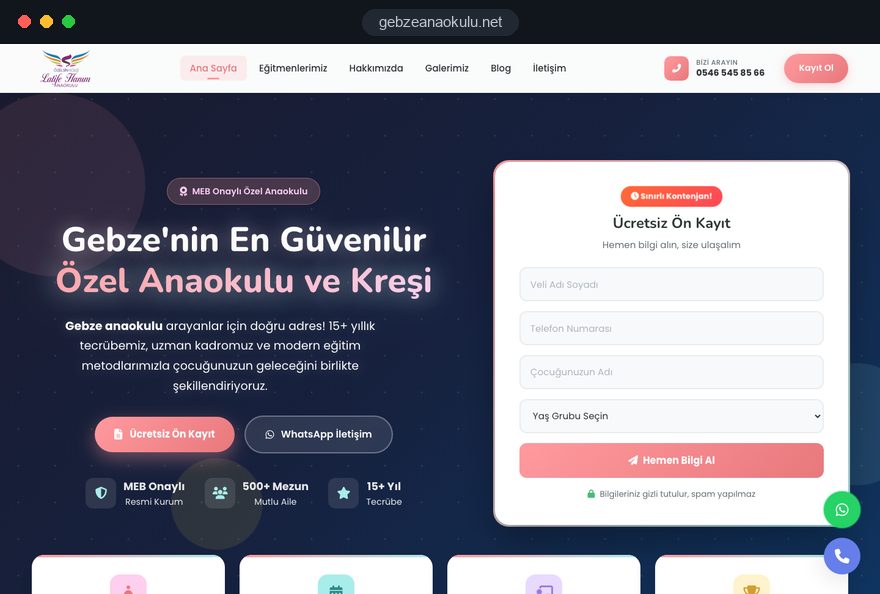
Parents usually read a nursery website twice. The first time is in the evening on a phone, comparing three or four settings side by side; the second is just before a visit, checking the questions they want to ask. Both times they are looking for the same things: what their child's day will look like, who will care for them and how easy the setting is to reach.
In this guide, Talha Aslan and team walk through the decisions a nursery or preschool makes when planning a website, in the order they usually come up: room pages, the daily routine, settling in, enquiries, photo consent, registration details, privacy, local search, speed and measurement. Each section ends with something you can check or use on your own site this week.
01Plan backward from your enrollment calendar
A nursery website timeline starts from your enrollment period, not from the first design meeting: when parents start looking, the site should be live, the copy finished and the form tested. Look at last year's enquiry log and note the months when requests peaked. Planning backward from that date avoids a rushed launch with half finished pages in your busiest weeks.
Photography is the most fragile part of the schedule, because rooms and gardens only look their part when the setting is tidy and the weather cooperates. Collecting room information from staff also takes longer than expected. Before you start a web design project, agree on these steps internally:
- Launch date: Write down the week enquiries usually begin and treat it as the target.
- Content owner: Name one person, for example the deputy manager, who gathers room details, menus and term dates.
- Photo day: Choose a time when rooms are set up, the garden is tidy and no children will be in frame.
- Test week: Before launch, submit the form from several phones and check who receives it and how quickly.
- New term plan: Decide now who will update the settling in and menu pages once the new intake arrives.
02What each room page should contain
A room page answers the question "what will my child actually do here" for one specific age group; it should never be a shortened copy of your general introduction. The parent of a baby wants to know about feeding, sleep and changing, while the parent of a four year old is thinking about school readiness. One template filled with age specific detail gives both consistency and depth.
For each room, collect the following from the room leader:
- Who it is for: The age range, how children move up from the previous room and the usual group size.
- Who cares for them: The room leader, the key person approach and support staff; qualifications only where they are held.
- What they do: Three or four concrete activities for that age, such as a weekly cooking session or planting seeds in the garden.
- What the focus is: Self care and sleep routines for the youngest, early literacy and taking turns in a group for the oldest.
- Next step: An enquiry prompt at the end of the page with this age group already selected.
Treat the baby room as a world of its own, with clear answers on hygiene, bottle and meal routines and how parents hear about the day at collection. If you serve international or bilingual families, plan room pages in a second language from the start with a proper multilingual site structure; adding them later is harder.
03Writing a typical day hour by hour
The daily routine page reassures parents more than any other page on a nursery website, because it turns uncertainty into concrete times. Instead of "a fun filled day of activities", give each block from arrival to collection a time and one sentence of explanation. For working parents, the first and last hours often decide the choice, so state early drop off and late collection options clearly.
A sample routine might read: 8:00 welcome and free play, 9:00 breakfast, 9:30 group time, 10:30 garden, 12:00 lunch, 13:00 rest and nap, 15:00 snack and a music session, 17:00 collection. Your times will differ; what matters is that a parent can picture the day.
When you write the routine, do not skip these details:
- Sleep: Which children nap, for how long, and what children who do not sleep do in that hour.
- Food: Whether meals are cooked on site and how allergies and dietary needs are handled.
- Extra sessions: How often language, music or movement sessions run and who leads them.
- Rainy days: What happens to garden time when the weather turns.
Publish the routine as text, not as an image, so it reads well on a phone and can be updated in seconds.
04A settling in page for the first weeks
The settling in page is written for the parent whose child is starting childcare for the first time, and it quietly shapes many enrollment decisions. Parents are less worried about whether their child will cry than about what happens if they do. Explaining your process step by step, calmly, answers what would otherwise come up on every call.
A useful settling in page answers these questions:
- How long can a parent stay on the first day, and when does the first separation happen?
- How does the length of each session grow during the first week or two?
- Can the child bring a comforter or a favorite toy from home?
- How and how often will the key person update the parent during the day?
- What happens if settling in takes longer than expected?
End the page with a short checklist for parents: spare clothes, named belongings, moving the bedtime routine closer to the nursery day.
Write it from what your staff actually do rather than generic parenting advice, and link it from every room page; parents research settling in before they have chosen a setting.
05The enquiry form and the visit flow
A nursery enquiry form should be short and deliver each request to the right person together with the child's age. Every extra field makes parents postpone; the detailed information is collected at registration anyway. Keep only what you need for the first call: the parent's name and phone number, the child's date of birth, the room or age group, the preferred start date and an optional preferred day for a visit.
What happens after the form is sent matters as much as the form itself; parents comparing several settings in the same week tend to favor the one that replies first. The flow we recommend:
- The parent submits the form and sees a thank you message that says when they will hear back.
- The request reaches the person handling admissions instantly by email and WhatsApp, with the age group included.
- That person calls the parent and agrees on a day and time for a visit.
- The day before the visit, the parent receives a short reminder with the address and parking details.
- After the visit, the enquiry is marked as enrolled, still deciding or chose elsewhere.
The last step is the one most settings skip, yet it is the only way to see which age groups actually convert. Add click to call and WhatsApp buttons to every page, since some parents prefer to talk. If you want parents to pick a visit slot themselves, a website with a booking system can handle that step automatically.
06Photos of children: consent and image planning
Photos of recognizable children are personal data, so a nursery website should not be built around children's faces. In the UK, the Information Commissioner's Office expects settings to have a lawful basis for publishing such photos, to tell parents how images will be used and to let them opt out.
Prepare a shot list in advance:
- Spaces: Rooms in daylight, play corners, the sleep room, the dining area and the garden.
- Materials: Learning resources, the book corner, artwork and activity displays.
- Details: Small hands shaping dough or painting, with no faces visible.
- Staff: Portraits of your team, taken with their agreement; parents value seeing who will care for their child.
Treat event photos, such as an end of year performance, separately from promotional pages. Ask for a separate and clearly worded photo consent at registration, record who gave it and decide in advance what happens when it is withdrawn. For updates meant only for current families, use a private channel rather than a public gallery.
The final decision on which images appear where belongs to your setting and your adviser. We build the site around those decisions and plan the structure so that an image can be removed from one place when consent changes.
07Registration, inspection and provider details
Parents trust a setting faster when its official identity is easy to find. In England, many parents check a nursery's Ofsted registration and latest inspection report before they visit, so the registered name, the provider details and a link to the report should be one tap away.
We recommend placing these details as follows:
- Registered name: Shown in the footer and on the contact page, even if you use a shorter brand and logo.
- Provider details: Who runs the setting, with the address and the main contact for admissions.
- Inspection link: A link to the latest report on the regulator's website, where one applies.
- Fees and funding page: A separate page that your team updates from the admin panel when terms change.
For preschools in Turkey, the regulation for private education institutions requires the name on the operating permit in all advertising and a QR code that identifies the institution in promotional material; it also asks for the fee announcement to be published on the institution's own website. Settings in other countries should check the equivalent rules with their regulator or registration body.
08Privacy notice, forms and health information
Because the enquiry form collects personal data, it needs a clear privacy notice next to it that explains who processes the data, for what purpose, who it may be shared with and what rights parents have. Write it from what your setting actually does rather than copying a template; if enquiries also arrive on WhatsApp, say so.
Health information is special category data under UK GDPR, and similar rules apply in the EU and in Turkey. Do not ask for allergies, medication, medical conditions or developmental notes in an open web form; collect them at registration, in an environment your setting controls. The less a form asks for, the less there is to protect.
On the technical side, check the following:
- The whole site, including the form page, runs on HTTPS.
- Enquiries do not pile up on the server indefinitely; there is a written rule for what happens after enrollment closes.
- Only named staff can read enquiries, using personal accounts rather than one shared password.
- Analytics and advertising tags are set up so that form contents are never passed to third parties.
- Cookies are explained in plain language, and non essential tracking waits for consent where the law requires it.
The final wording of legal texts is your adviser's responsibility. We make sure they sit in the right places and work together with the form.
09The parents section: menus, term dates and news
The parents section is where current families return every week, and it takes direct pressure off the office phone. The goal is not to move everything onto the website but to keep lasting, frequently asked information in one place. Quick reminders can stay in your messaging app; menus, term dates and closure days belong on the site, with a link that can be shared.
You can split information like this:
- Permanent on the site: Weekly menus, term dates, drop off and collection rules, and the illness and exclusion policy.
- News on the site: Dated events such as trips, performances and parent evenings.
- Private channel only: Photos of children, individual development notes and room level messages.
Enter menus as text rather than images, so they read well on a phone and allergen notes can be added. With a weekly template in the admin panel, updating the menu becomes a few minutes of work for the office.
Agree in writing before launch who updates what, and on which day. A parents section with last month's menu leaves a worse impression than having none at all. For a frequently asked questions list, ask the office to note every phone question for one week.
10Local search and your Google Business Profile
Parents search for a nursery near home or work and often choose from the map results, so local visibility depends on your website and your Google Business Profile working together. Google's guidelines say the business name on the profile must match your real world name, without added keywords such as "affordable nursery".
A local search checklist:
- Choose the primary category that describes your setting most accurately and keep secondary categories few.
- Write the address, phone number and opening hours exactly as they appear on your contact page.
- Add photos of rooms, the garden and the entrance; avoid photos with children's faces here too.
- Ask current parents for reviews and reply to every review, including critical ones, briefly and calmly.
- Mention your neighborhood naturally on each room page, for example "the preschool room at our Clapham setting".
If you have more than one site, each needs its own profile and its own location page. Structured data marks up your name, address and hours so search engines can read them, and nothing is marked up that is not visible on the page. In a neighborhood with many competing settings, it is worth discussing the scope of search engine optimization separately.
11Mobile speed and the weight of photos
Most parents arrive on a phone, often on the commute or late in the evening, and a slow page sends them to the next setting on their list. Photos are the main cause of slow nursery websites, because room and garden images are often uploaded straight from a camera at full size.
Google's Core Web Vitals give you clear targets. LCP, which measures how quickly the largest element on the page loads, should be 2.5 seconds or less; INP, which measures how fast the page responds to a tap, 200 milliseconds or less; CLS, which measures how much content shifts while loading, 0.1 or less. Google assesses these at the 75th percentile of visits.
- Size images properly: Upload them at the width they are displayed, in a modern format and compressed.
- Skip the slider: Use one strong image of a room on the home page instead of a rotating gallery.
- Delay video: If you have a virtual tour, load it when the parent taps, not when the page opens.
- Limit fonts: Two font families are enough for almost any nursery website.
You can check how your current site behaves on a phone in a few minutes with our free mobile friendly test. If you are planning a new site, ask for Core Web Vitals to be measured before launch and shown to you at handover.
12Measuring which pages bring enquiries
Visitor numbers say little about how a nursery website performs; what matters is which pages and channels bring visit requests and enquiries. Measurement should therefore be built around conversions from day one. A conversion is any action that matters to you: sending the form, calling or messaging.
Track these as separate conversions:
- A successful enquiry form submission, including the age group selected.
- A visit request, separate from a general enquiry.
- Taps on click to call and WhatsApp buttons.
- Taps on directions, especially from your Google Business Profile.
When enrollment closes, run a short review: which room page brought the most enquiries, which channel they came from and how many visits turned into places. If outcomes are marked consistently after each visit, the answers come from records rather than guesswork.
Offline channels can be measured too. Create a separate tagged link for leaflets, banners or a local magazine and turn it into a code with our free QR code generator, so families who found you on paper show up in your reports. If you advertise during enrollment, send that traffic to a single goal landing page rather than the home page; it keeps measurement simple.
13Common mistakes on nursery websites
Each of these mistakes looks small on its own, but together they make parents close the tab without asking for a visit. Next to each one is the better alternative.
- One paragraph for all rooms: Every age group is described together; instead, give each room its own page, its own staff and its own activities.
- A home page full of children's faces: It strains parents' trust and your consent records; use spaces, materials and shots where children cannot be recognized.
- Menus posted as images: They are hard to read on a phone and to update; switch to a weekly menu entered as text in the admin panel.
- A long form asking for health details: It makes parents postpone and collects sensitive data you do not need yet; use five or six fields and collect health information at registration.
- A brand name that hides the registered name: Parents checking the regulator cannot match it; keep the logo but show the registered name in the footer.
- Launching in the middle of enrollment: Problems surface in your busiest weeks; go live before enquiries start and test the form for a full week.
Open your current site on your own phone, as a parent would, and tick off each item.
14Choosing a partner and your next step
When choosing who will build your nursery website, pay more attention to how they answer your questions than to their design samples. A team that has thought these topics through will raise most of them itself in the first call.
Ask these questions when you request a quote:
- Do you propose a separate page for every room, built from one shared template?
- Can we update menus, news and fee information ourselves, and is training included at handover?
- Who receives enquiries, through which channel, and is the age group included?
- What image plan and consent field do you suggest for photos of children?
- Will Core Web Vitals and conversion tracking be shown to us at handover?
You can see our early years project further up this page and more of our work on the references page. Share your rooms, places and enrollment calendar through the contact form, and we will come back with a page structure and a written quote. Packages and scope options are listed in the pricing section; for questions about cost, use the quote form.